Step 3 - Dataset Selection
On this step, you will select the folder containing your data to upload. How you structure your data locally inside the folder depends on whether you're uploading to a new dataset or an existing one.
Uploading to a new Pennsieve Dataset
Select (or drag and drop) the single folder that contains your entire dataset. Your dataset should already be organized inside this folder according to the SPARC Dataset Structure.
Uploading data to an existing Dataset on Pennsieve
If you are able to download the full dataset from Pennsieve or can have it sent to you, this makes the updating an existing dataset process much easier. You can then add your data to it locally and follow the complete dataset locally workflow instead. No need to manually recreate folder structures.
If you have the complete dataset locally with modifications ready to upload
If you have a complete local copy of the dataset that exists on Pennsieve and have made modifications or additions to it locally, simply select (or drag and drop) the folder containing your updated dataset.
SODA will only upload new or updated files to Pennsieve. If you deleted files or folders locally, they will not be removed from Pennsieve. SODA is additive only. It adds or updates files but does not delete existing data on Pennsieve.
What to expect:
- Only new files will be uploaded to Pennsieve
- Files that already exist on Pennsieve will have the option to be either skipped or replace (you will be able to select what happens in a subsequent step)
- Files or folders deleted locally that exist on Pennsieve will remain on Pennsieve unchanged
If you are contributing additional data to a dataset you do not have locally
You will need to recreate the folder paths for the data you are adding so your files end up in the right place on Pennsieve. Since SODA does not display the dataset structure that exists on Pennsieve, you must manually match the nested folder paths for your files. For example, if you want to add files to primary/sub-1/data/ on Pennsieve, your local folder structure must also be primary/sub-1/data/ with your files inside—not just sub-1/data/. This ensures SODA uploads your files to the correct location.
Before you start:
- Identify the specific folder paths on Pennsieve where you plan to add your files
- Create only those matching folder paths locally (you don't need to recreate the entire dataset's folder structure)
- Place the new data that you would like to add in the appropriate local folders
What to expect:
- Your new files will be uploaded to the matching folders on Pennsieve
- Existing data on Pennsieve remains unchanged unless you placed files in the same location and choose the "replace existing files" option in a subsequent step
Example: Adding files to an existing folder on Pennsieve
If you are adding files to a folder that already exists on Pennsieve, create that same folder locally and place your new files inside it:
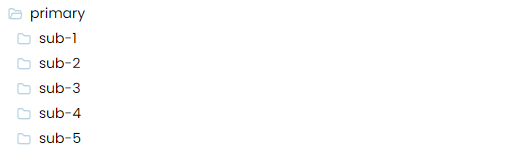
Sample existing structure on Pennsieve
The folders and subfolders already in your dataset on Pennsieve
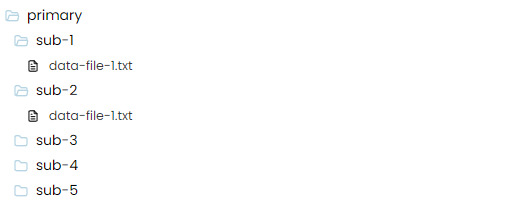
How you should structure your data locally
The matching folder structure you create locally before uploading
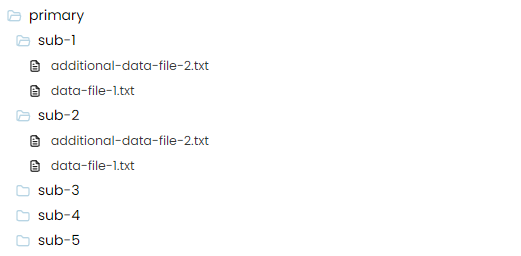
Example: Adding folders to an existing structure on Pennsieve
If you are adding entirely new folders that don't exist on Pennsieve, create those new folders locally with the same names and structure they should have on your dataset:
Existing structure on Pennsieve
The folders and subfolders already in your dataset on Pennsieve

How you should structure your data locally
The matching folder structure you create locally before uploading