Trouble starting the Pennsieve agent in SODA
Issue Background
The Pennsieve Agent failed to start issue can happen in three scenarios:
- The agent is not installed on the computer.
- The Agent is installed but does not run.
- The Agent is installed and passes the Pennsieve Agent check, but then cannot start when an upload is started in
Prepare Dataset Step-by-SteporUpload SDS Compliant Datasetfeatures.
If scenario 1 applies to you please see this page in the documentation for how to install the Pennsieve agent here.
You will know issue three applies to you if you see the following error message in the SODA UI:
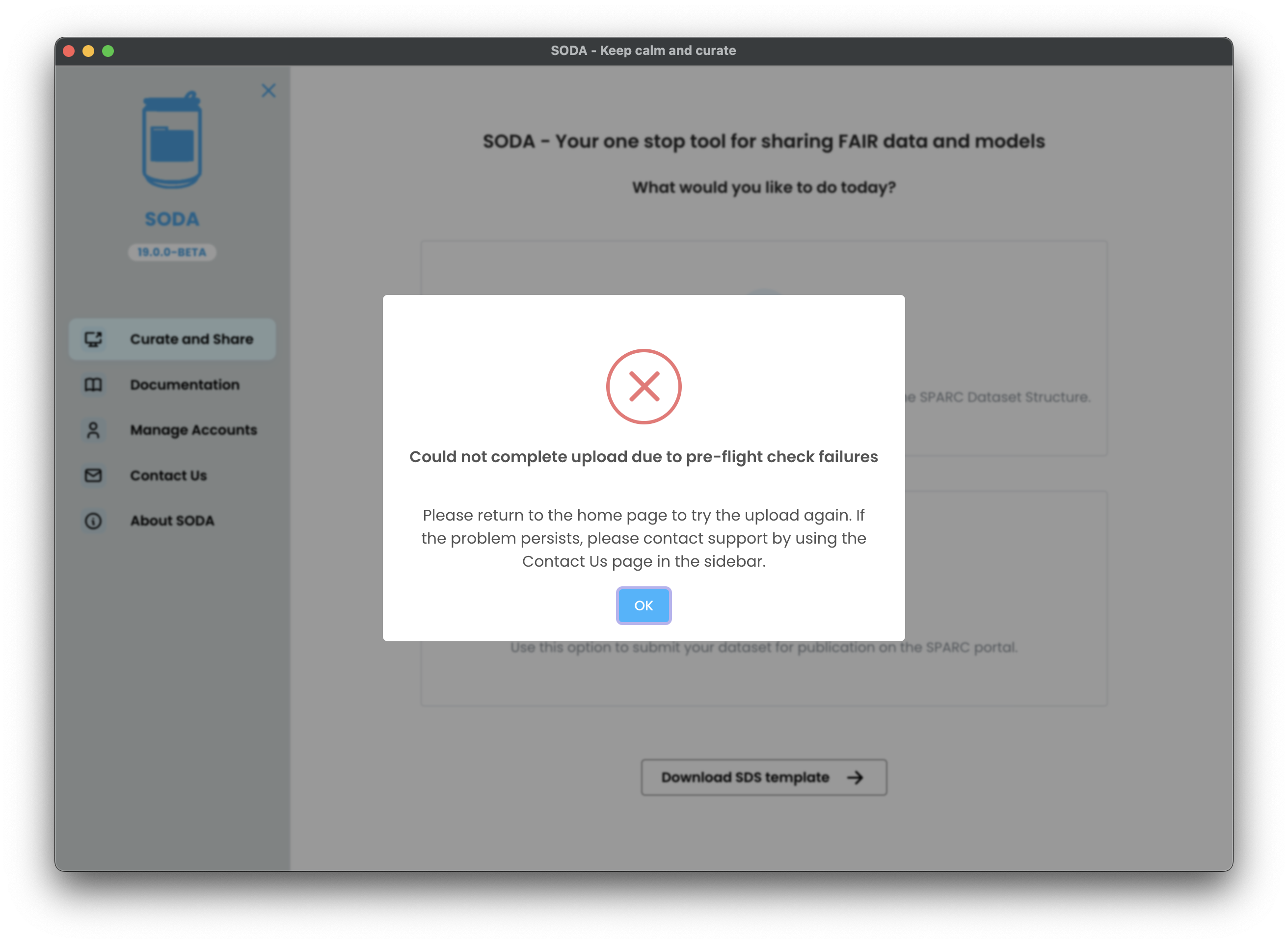
To resolve this issue please see the documentation for how to remove the Pennsieve Agent database files here. This should resolve your issue. If it does not, please send your log files to the SODA team for further assistance.
If you have the agent installed but it is not running, please follow the instructions below to troubleshoot the issue.
Determining the Cause of the Issue
How to Troubleshoot the Pennsieve Agent Not Starting
Follow these steps to diagnose and resolve issues starting the Pennsieve Agent:
Try to Start the Agent Manually
- Open your terminal and run:
pennsieve agent start - This will attempt to start the Pennsieve Agent outside of SODA and provide helpful error messages.
- Open your terminal and run:
Check the Terminal Output
- If you see:
Running Agent NOT as daemonor a message saying the Agent has started:
SODA is not detecting the running Agent. Send your log files to the SODA team for further help.command not found: pennsievebut you believe the Agent is installed:
SODA cannot find the Pennsieve Agent. Send your log files to the SODA team for assistance.- Any other error message:
Continue to the next step for troubleshooting based on the error you see.
- If you see:
If You Cannot Start the Agent from the Terminal
- Follow the troubleshooting steps below based on the error output in the SODA UI. To find the error output in SODA, look for the area circled in red in the screenshot below.
Permission Denied Error
This issue applies to you if you see the following (or something similar) in the SODA UI:
bash: /c/Program Files (x86)/Pennsieve/pennsieve: Permission denied
This can have one, or both, of the following causes:
SmartScreen Defender Blocking the Pennsieve Agent
If you are using Windows 10 or 11 this issue may be caused by SmartScreen Defender. To determine if SmartScreen Defender is blocking the Pennsieve Agent, and unblock it, follow the instructions below:
- Open the File Explorer and navigate to the Pennsieve Agent installation folder (usually
C:\Program Files (x86)\Pennsieve). - Right-click on the
pennsieve.exefile and select "Properties". - In the Properties window, go to the "General" tab.
- If there is a message at the bottom of the window that says "This file came from another computer and might be blocked to help protect this computer", check the box that says "Unblock" and then click "Apply" and "OK".
- Try starting the Pennsieve Agent again from the terminal by running
pennsieve agent startand see if the issue is resolved.
Smart App Control Blocking the Pennsieve Agent
If you are using Windows 11, and unblocking the Pennsieve Agent as described above did not resolve the issue, it may be caused by Smart App Control. To check and resolve:
Check if Smart App Control is enabled:
- If you received a message that states "Smart App Control has blocked this app" then Smart App Control is enabled and blocking the Pennsieve Agent.
- If the above is uncertain, you can also follow the instructions to determine if Smart App Control is on and being enforced here.
If Smart App Control is enabled, optionally disable it by doing the following:
noteDisabling Smart App Control is generally not recommended, as it provides important security protections for your computer. If disabling it is not an option for you, please contact the SODA team by emailing us at help@fairdataihub.org for further assistance.
- If you are using a computer provided by your employer or institution, contact your IT department to see if they can provide a solution that does not involve disabling Smart App Control.
- If you are using a personal computer and decide to disable Smart App Control, follow the instructions here.
If Smart App Control is not enabled:
- Follow the next troubleshooting steps below to determine the cause of the issue.
User Profile with Restricted Permissions
If you are using a user profile with restricted permissions on your computer, this may be causing the issue. If you are using a computer provided by your employer or institution, you may want to reach out to your IT department to see if this is the case and if they can provide a solution. If you are using a personal computer, you can check if your user profile has restricted permissions by following the instructions here. If you find that your user profile has restricted permissions, you can try creating a new user profile with administrative permissions and see if that resolves the issue.
UNIQUE constraint failed
This applies to you if you see the following (or something similar) in the SODA UI:
UNIQUE constraint failed: user_settings.id
This is a known issue you may encounter when using the Pennsieve Agent. To resolve this issue you should remove the Agent database files and try again. To do this, follow the instructions on removing the database files available here.
NotAuthorizedException: Incorrect username or password
This applies to you if you see the following (or something similar) in the SODA UI:
NotAuthorizedException: Incorrect username or password.
This is a known issue you may encounter when using the Pennsieve Agent. To resolve this issue you should remove the Agent database files and try again. To do this, follow the instructions on removing the database files available here.
UserSettings
This applies to you if you see the following keyword (or something similar) in the SODA UI:
UserSettings
This is a known issue you may encounter when using the Pennsieve Agent. To resolve this issue you should remove the Agent database files and try again. To do this, follow the instructions on removing the database files available here.
Bad CPU Type
This applies to you if you see the following (or something similar) in the SODA UI:
Bad CPU type in executable
This issue can occur on Mac computers with Intel chips while running certain versions of the Pennsieve Agent. This cannot be resolved, but you can work around it by installing an older version of the Pennsieve Agent manually. Follow these steps:
- Download an older version of the Pennsieve Agent installer. You can find the versions of the installer available on the Pennsieve Github Repository here.
- Manually install the Pennsieve Agent by following the instructions available here.
- After installation, open your terminal and try running the Agent:
pennsieve agent start
- If it does not work, try a different (older) version of the installer and repeat the steps above until you find one that works on your system.
Still Having Issues?
If following the troubleshooting steps did not resolve the issue, or you are unsure about what steps apply to you please send your log files to the SODA team.