How to restart an upload after removing Pennsieve Agent database files
Background
Some users encounter an issue running the Pennsieve Agent that can only be resolved by removing the Pennsieve Agent database files. If the user has uploaded files to Pennsieve successfully before the database files were deleted, and wants to continue their upload, it is necessary to reset the SODA upload process first. This page gives instructions on how to do this.
How to reset upload if you deleted the Pennsieve Agent database files
Prepare Dataset Step-by-Step
- Navigate the the SODA folder on your computer located in your home directory on Mac and Linux or user directory for Windows.
- Click the Progress Files folder
- Open your progress file in a text editor of your choice.
- Text search for "upload-progress" and remove this from the file as well as its children (see highlighted text in image below for reference)
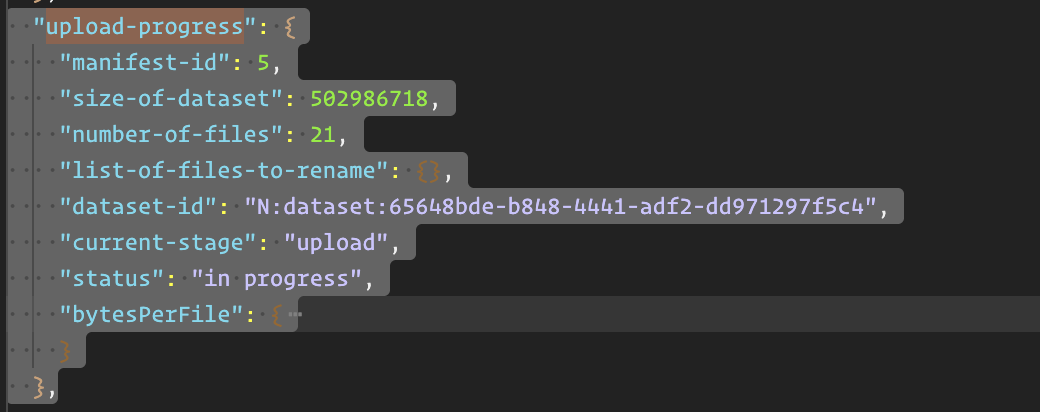
- Save the file before closing it.
- Open SODA
- From the SODA home page, click the
Prepare Dataset Step-by-Stepbutton. - Click the
Resume Curationbutton for your progress file. - Click the
Generate dataset on Pennsievebutton again and the upload will restart and upload all files that have not already been uploaded to Pennsieve.
Uplad SDS Compliant Dataset
- Start a new progress file
- Fill out the Pennsieve Log In page and click
Save and continue - Click the
Add data to an existing dataset on Pennsievebutton - Click the
Select a datasetbutton and select the dataset you want to finish uploading to then click Continue. - Import your entier dataset and then click
Save and Continue - Click the
Skip existing filesoption for files then clickSave and Continue - Continue to the upload page and click
Generate